
Setup guide
From sign-up to your first completed training
Most teams are set up in one sitting. Here’s the whole process: what you do as the administrator, what your workers do, and where to check the results.
The process at a glance
- You1. Start your free trialSign up, set your password, log in
- You2. Set up your companyProfile, state and logo
- You3. Add your workersNames and an email or mobile
- You4. Assign trainingGroups, packs and due dates
- Workers5. Complete it on their phoneWatch, answer, acknowledge
- You6. Check status and answersTraining matrix and worker records
- You7. Choose a planYour logo goes on, records carry over
New episodes, new starters and refreshers: back to step 3 or 4. Everything already done stays on record.
Step 1 · You
Start your free trial
Fill in the free trial form: your business name, your name, work email, state or territory, and roughly how many workers you have. No card, and nothing to install.
- We email you a Set your password link. Check your junk folder if it hasn’t arrived within a few minutes.
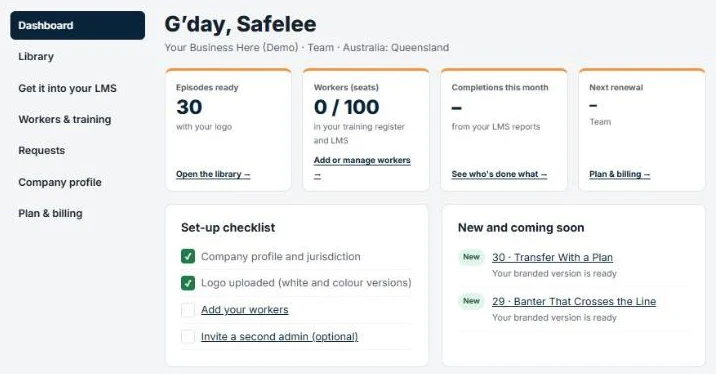
- Set your password, then log in at safelee.au/portal. You’ll land on your dashboard, which has a set-up checklist.
- The trial covers every released episode, with its quiz and safe work guide, for up to 20 workers.
Step 2 · You
Set up your company
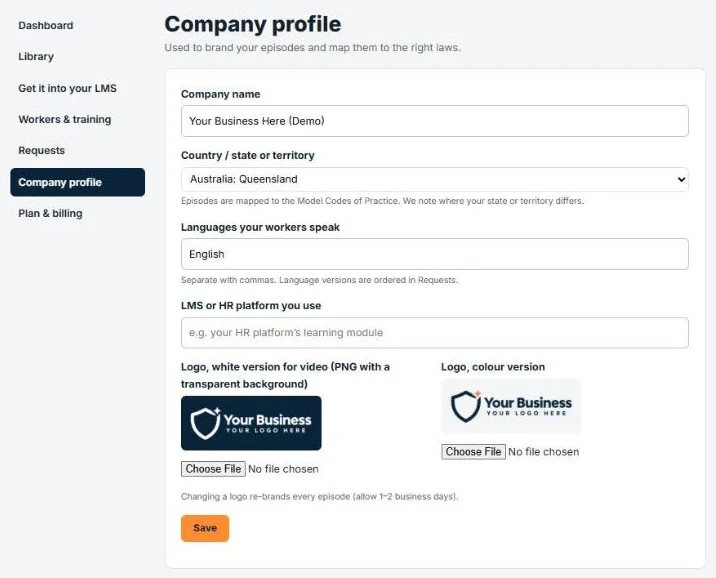
Open Company profile in the portal menu.
- Business details and state: your state or territory links each safe work guide to the right regulator.
- Logo: upload a colour and a white version. During the trial, episodes show our demo version with “Your Business Here”. On a paid plan, your logo goes on every episode.
- Admins (optional): invite a second administrator, such as a supervisor or your WHS adviser. They get an email to set their own password and can see the whole portal for your company.
Step 3 · You
Add your workers
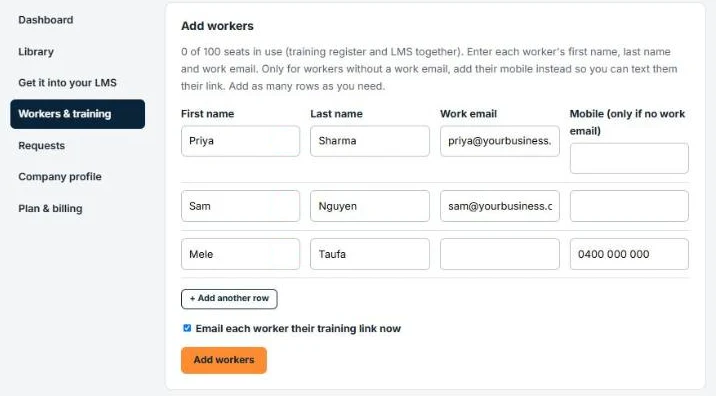
Open Workers & training, then Add workers.
- Enter each worker’s first name, last name and work email. For anyone without a work email, add their mobile number instead. Use + Add another row to add several at once.
- Workers don’t need an account, an app or a password. Each one gets a personal training link.
- Mobile only? Open the worker and tap Text link to send it from your phone. Or print their QR card and hand it over.
Step 4 · You
Assign training
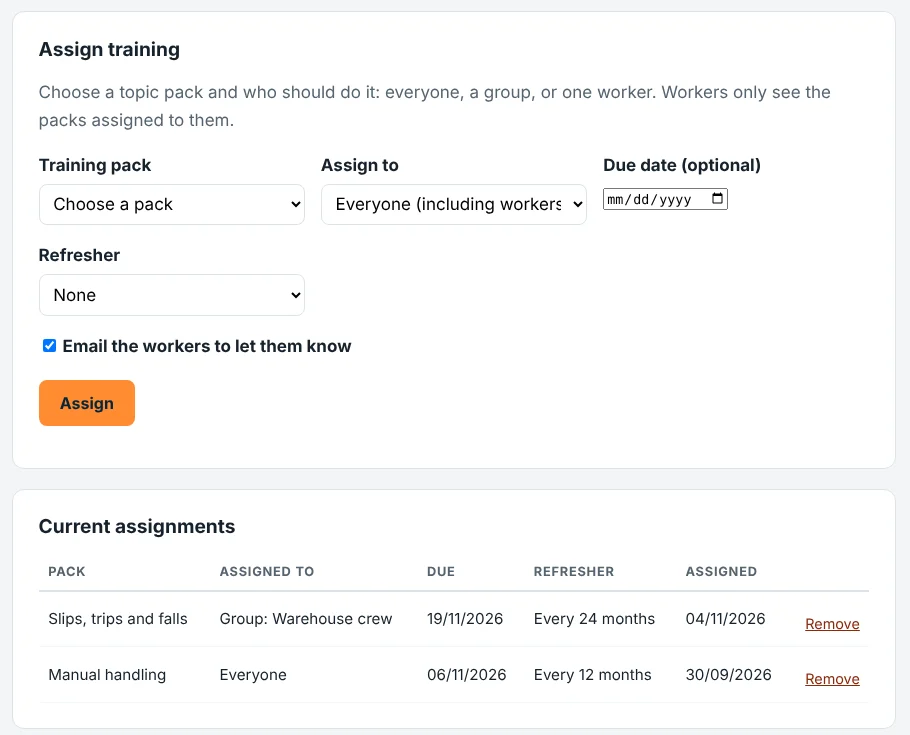
Still in Workers & training, open the Assign training tab.
- Groups (optional): on the same tab, create groups for a site, crew or role, and tick who’s in each.
- Training pack: choose the topic pack to assign.
- Assign to: everyone (including workers added later), a group, or one person.
- Due date (optional) and refresher: none, every 12 months or every 24 months. This is a setting for your training plan, not a legal interval.
- Leave Email the workers to let them know ticked and each worker gets their link straight away. Untick it if you’d rather tell them at a toolbox talk.
Step 5 · Your workers
Workers complete it on their phone
Workers open their link (or scan their QR card) and see what’s due.
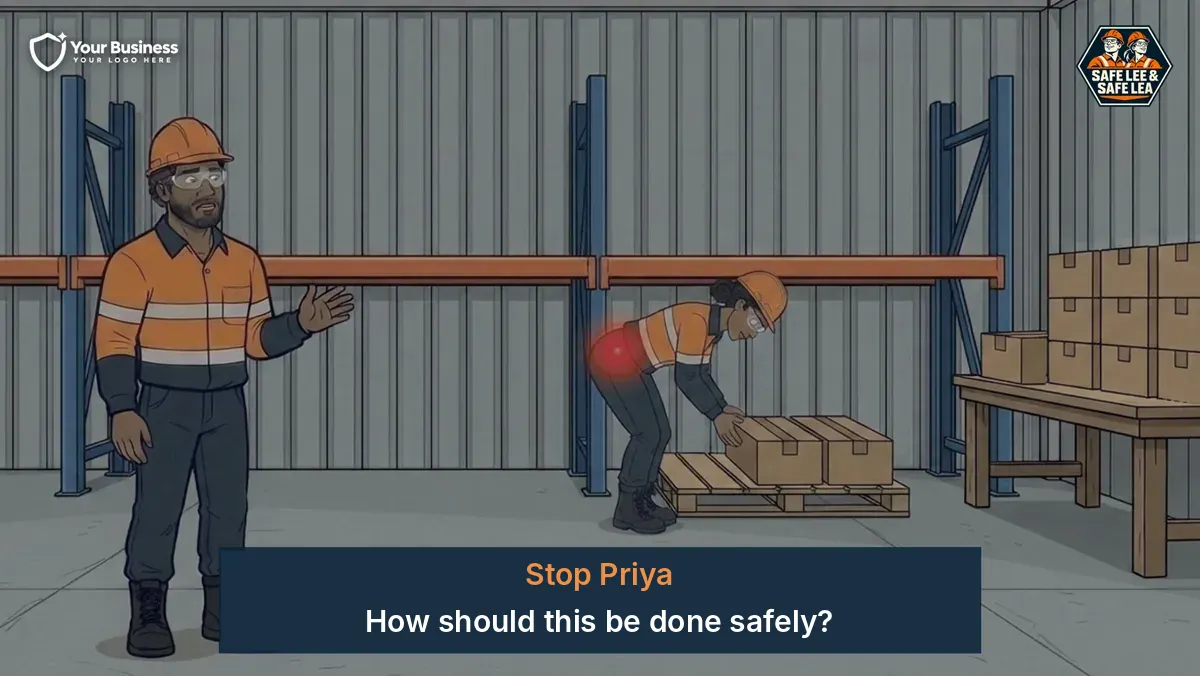
- Watch the episode. About a minute and a half. It stops at the freeze question, asks how the job should be done, then shows the safer way.
- Answer the quick questions. If they get one wrong, they can try again, and every attempt is recorded.
- Acknowledge it. A short statement that they’ve watched and understood it. Once they’ve watched, answered the questions correctly and acknowledged it, the episode is complete. The record shows their completion and answers and helps check understanding; it doesn’t prove competence on its own.
- English subtitles are available. Workers can turn them on with the CC button.
Running it as a group? Play the episode at a toolbox talk and use the Group session tab to mark everyone who attended.
Step 6 · You
Check status and answers
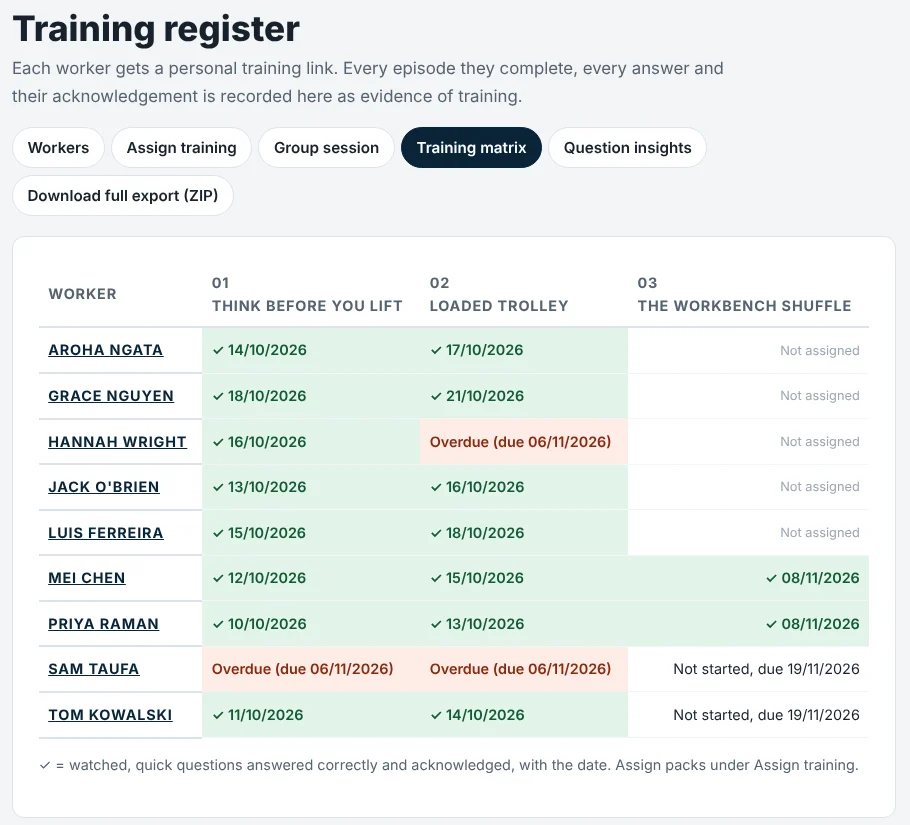
The Training matrix tab in Workers & training shows every worker against every episode.
- ✓ with a date means watched, questions answered correctly and acknowledged. You’ll also see In progress, Not started and what’s due or overdue.
- Open a worker to see their training record, including every attempt and answer, and download a transcript.
- The Question insights tab shows which questions people get wrong most, so you know what to cover at the next toolbox talk.
- Admins get a weekly summary email, and an email when a worker finishes everything assigned to them.
- Need it for an audit? Download full export (ZIP) gives you every completion, answer and acknowledgement. Records can’t be edited once made.
Step 7 · You
Choose a plan
When you’re ready, open Plan & billing and choose Micro, Starter, Team or Business, monthly or annual. Pay securely by card, and you get a tax invoice by email.
- Your workers, groups and training records carry straight over.
- We brand your episodes with your logo, usually within one business day.
- Starter and above can also deliver the episodes into your own LMS (Get it into your LMS in the portal menu).
- Change plan, update your card, download invoices or cancel any time from Manage payment and invoices.
Common setup questions
Do my workers need to download an app or create an account?
No. Each worker gets a personal link that opens in any phone browser. Workers without a work email can get it by text from your phone, or scan a printed QR card.
Can I see how each worker answered the questions?
Yes. Open the worker in Workers & training to see every attempt and every answer, with dates. Question insights show the same thing across your whole team.
What happens when someone leaves?
Archive them in Workers & training. Their link stops working, and their training record stays for your records.
Can more than one person manage the account?
Yes. Invite another administrator under Company profile. They get their own login.
We already have an LMS. Do we still need the portal?
On a paid plan, you can load the episodes into your own LMS and assign them there. The portal stays available for your logo, safe work guides and requests.
What happens at the end of the free trial?
Choose a plan and everything carries over. If you don’t, access stops and you can download your records for 30 days.
Ready to set up your team?
Start the free trial and work through these steps, or send us an enquiry and we’ll walk you through it.